Modern laptops, tablets, and phones have largely ditched traditional video ports in favor of the versatile USB C connector. That shift creates a practical challenge whenever you want to drive a larger monitor, television, or projector that still relies on HDMI. The solution most people reach for is a USB C to HDMI setup, whether through a compact adapter or a dedicated cable. When it works, the experience feels almost magical: plug in, select the input, and your content appears on the big screen with audio included. When it fails, the frustration can be real, usually because of compatibility details that are easy to overlook.
This guide walks through the entire topic in plain language. You will learn how the technology actually functions under the hood, what to check before buying, the differences between cables and adapters, real-world use cases, and how to fix the most common problems. The goal is to give you enough clear information so that choosing and using the right gear becomes straightforward rather than a guessing game. Related ideas such as DisplayPort Alternate Mode, resolution limits, refresh rates, and multi-monitor workflows appear naturally throughout because they matter to everyday performance.
Understanding How Video Travels from USB-C to an HDMI Display
USB-C is a connector shape, not a complete guarantee of features. The same physical port can support charging only, data transfer, or full video output depending on the device’s internal design. For video to leave the USB-C port and reach an HDMI screen, the source device must support a feature called DisplayPort Alternate Mode, often shortened to DP Alt Mode. In simple terms, the port reassigns some of its high-speed lanes to carry a native DisplayPort video signal. That signal then needs conversion into the HDMI format that most televisions and many monitors expect.
Inside a typical USB C to HDMI adapter or cable sits a small conversion chip that performs this translation in real time. The process is usually invisible to the user and requires no extra drivers on modern Windows, macOS, or ChromeOS systems. Audio travels along the same path, so you normally get picture and sound without needing a separate speaker cable. Because the conversion happens inside the adapter, the quality of that chip and the supporting circuitry directly affects maximum resolution, refresh rate stability, and overall reliability.
Not every USB-C port offers DP Alt Mode. Some budget laptops or phones restrict the port to charging and basic data. Thunderbolt 3, Thunderbolt 4, and USB4 ports almost always include video capability and often provide higher bandwidth for demanding resolutions. Checking the device specifications for phrases such as “DisplayPort over USB-C,” “video output,” or the presence of a DisplayPort or Thunderbolt logo near the port saves a lot of disappointment later. Once you confirm support, the rest of the connection becomes far more predictable.
Choosing Between a Dedicated Cable and a Compact Adapter
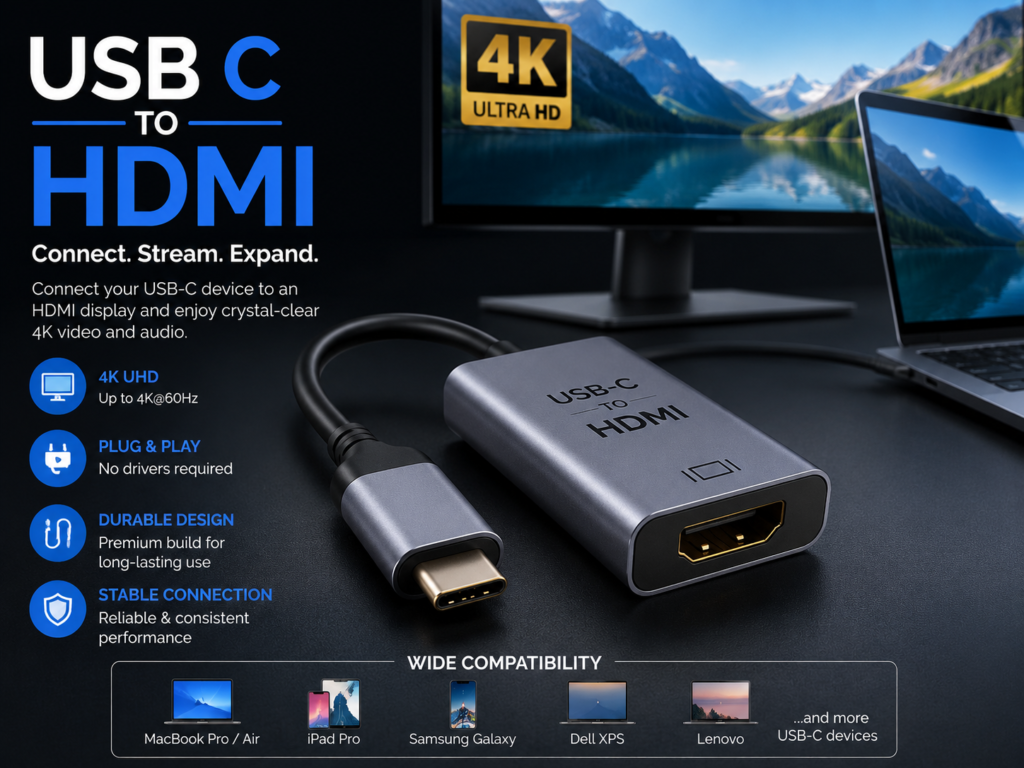
Two main form factors dominate the market. A dedicated USB C to HDMI cable has a USB-C plug on one end and a full-size HDMI plug on the other. You connect it directly from device to display with nothing else required. This style keeps the signal path short and clean, which can help with higher resolutions and longer runs. It also reduces the number of connection points that might work loose during everyday use.
An adapter, by contrast, presents a USB-C plug on one side and a female HDMI socket on the other. You plug the adapter into your laptop or phone, then run a standard HDMI cable from the adapter to the television or monitor. Adapters shine when you already own good HDMI cables or when you need maximum portability. Many people keep a small adapter in a laptop bag so they can connect to whatever display they encounter at a meeting or hotel. The trade-off is an extra connection point and, in some lower-cost models, slightly lower maximum refresh rates.
Deciding which style fits better depends on your primary use case. Desk setups that stay plugged in most of the day often favor a clean single cable. Travel and presentation work lean toward the compact adapter. Either approach can deliver excellent results when the product supports the resolution and refresh rate you actually need. Paying attention to the listed specifications rather than the shape alone prevents buying something that looks convenient but underperforms.
Resolution, Refresh Rate, and Why the Numbers Matter
The most important numbers on any product packaging are the maximum resolution and refresh rate the device can sustain. Many affordable options advertise 4K support yet quietly limit that 4K signal to 30 frames per second. For static presentations or watching movies this is often acceptable. For smooth cursor movement, video editing, or casual gaming the difference between 30 Hz and 60 Hz is immediately noticeable. True 4K at 60 Hz requires enough bandwidth to match HDMI 2.0 capabilities and a conversion chip that can handle the data rate without dropping frames.
Higher refresh rates at lower resolutions are also useful. Some products support 1440p at 120 Hz or 1080p at even higher rates, which benefits competitive gaming or fluid creative work. HDR support appears on better models and improves contrast and color on compatible displays, though it is not essential for every user. When shopping, look past the big “4K” marketing claim and verify the exact combination of resolution and frame rate. Matching those numbers to your actual display and content prevents the common disappointment of a soft or stuttering image.
Cable length interacts with these performance limits. Longer cables introduce more opportunity for signal degradation, especially at higher bandwidths. Quality shielding and proper internal construction help, but there is still a practical limit. For most desk and living-room distances a well-made cable of two to three meters performs reliably. Very long runs sometimes benefit from active cables that include signal boosting, though those remain less common in the USB-C to HDMI category.
Confirming Compatibility Before You Buy
Compatibility starts with the source device. Laptops from Apple, Dell, Lenovo, HP, and many others that carry Thunderbolt or full-featured USB-C ports generally work well. Recent iPhones beginning with the 15 series support video output over USB-C and can drive external displays through a proper adapter. Many Android flagships do the same, though mid-range models sometimes omit the feature to reduce cost. Tablets such as recent iPad Pro and iPad Air models also support external displays when the right cable or adapter is used.
The display side is simpler. Almost any modern television, monitor, or projector with an HDMI port will accept the signal once the conversion has occurred. Older displays limited to HDMI 1.4 may restrict you to lower resolutions or refresh rates even if the adapter is capable of more. Checking both ends of the chain avoids mismatched expectations. When in doubt, the safest test is to try the connection with a known-good combination of devices before relying on it for an important presentation or movie night.
Operating system support is rarely an issue today. Plug-and-play behavior is the norm on current versions of Windows, macOS, ChromeOS, and most Android implementations. Occasional driver or firmware updates can improve stability, but the majority of users never need to install anything extra. The real gatekeeper remains the presence of DisplayPort Alternate Mode on the USB-C port itself.
Everyday Use Cases That Benefit from This Connection
Office and remote-work setups gain an immediate productivity boost. Connecting a laptop to a large external monitor creates space for multiple windows, spreadsheets, and reference material without constant tab switching. Many people run a dual-monitor arrangement by combining the built-in laptop screen with one external display, or even two external displays when the laptop and dock support it. The single-cable nature of a good USB C to HDMI solution keeps the desk tidy compared with older multi-cable approaches.
Home entertainment is another natural fit. Streaming a phone or tablet to a living-room television lets everyone watch photos, videos, or mobile games on a bigger screen without wireless lag or quality loss. Laptops become convenient media centers when plugged into a television for movie nights. The automatic audio passthrough means dialogue and soundtrack play through the television speakers without extra configuration in most cases.
Presentations and classroom use remain classic scenarios. A compact adapter in a bag allows quick connection to projectors or conference-room displays that still rely on HDMI. Because the process is usually driver-free, setup time stays short even in unfamiliar environments. Creative professionals editing video or photos also appreciate the color accuracy and resolution headroom that a solid 4K connection provides when reviewing work on a calibrated external monitor.
Common Problems and Practical Troubleshooting Steps
The most frequent complaint is a black screen or no signal message. In the majority of cases the root cause is a USB-C port that simply does not support video output. Confirming DP Alt Mode or Thunderbolt support on the specific port being used eliminates this possibility. Trying a different USB-C port on the same device sometimes reveals that only one of several ports carries the video capability.
A second common issue involves resolution or refresh-rate mismatch. The operating system may default to a lower setting that looks soft or introduces lag. Opening the display settings and manually selecting the preferred resolution and refresh rate often solves the problem. On Windows the shortcut Windows key plus P quickly cycles through mirror, extend, and second-screen-only modes. On macOS the Displays pane in System Settings offers similar control and arrangement options.
Cable or adapter quality can also introduce intermittent dropouts or flickering. Cheaply made products may lack proper shielding or use under-specified conversion chips. Swapping to a known higher-quality unit is a reliable test. Ensuring the HDMI cable itself is rated for the target resolution (HDMI 2.0 or better for 4K60) removes another variable. Power delivery quirks occasionally appear when the same USB-C port is expected to charge the laptop and output video simultaneously; using a separate charger or a dock that handles both functions cleanly can restore stability.
Building a Reliable Multi-Monitor Workspace
Many professionals want more than one external screen. Achieving this with USB-C depends on the bandwidth available from the laptop’s ports and the capabilities of any intermediate dock or hub. Some Thunderbolt docks can drive two or even three external displays at high resolution by leveraging the high-speed lanes of a single Thunderbolt connection. Simpler USB-C hubs with a single HDMI port still expand the workspace usefully for most people.
When planning a multi-monitor layout, consider both the physical arrangement and the software configuration. Matching resolutions and scaling settings across screens reduces eye strain. Positioning the displays so that the mouse cursor travels naturally between them improves daily comfort. Some users prefer the laptop screen closed and rely entirely on external monitors; others keep the built-in display active as a secondary reference. Either approach works once the hardware supports the desired number of simultaneous outputs.
Future expansion is worth a moment of thought. Choosing adapters and docks that support higher bandwidth standards leaves room for newer higher-resolution or higher-refresh-rate monitors later. While not everyone needs 8K today, buying gear that already handles current 4K60 demands with headroom avoids early obsolescence.
Evaluating Build Quality and Longevity
Not all adapters and cables are built the same. Look for solid strain relief where the cable meets the connector, metal rather than purely plastic housings on the plugs, and clear labeling of supported resolutions. Braided exteriors resist fraying better than thin rubber jackets during repeated packing and unpacking. Some manufacturers include small carrying pouches that protect the connectors when the product lives in a bag.
Warranty length and customer support reputation provide additional clues. Products backed by multi-year coverage and responsive support teams tend to use better components. User reviews that mention long-term reliability rather than only unboxing impressions are especially useful. Spending a little more on a well-reviewed unit often costs less over time than replacing a failing bargain adapter every few months.
Heat management is another quiet factor. Conversion chips generate a small amount of heat under sustained high-resolution output. Designs that dissipate that heat effectively maintain stable performance during long work sessions or movie marathons. Excessively hot adapters can throttle performance or shorten component life, so physical design matters beyond pure aesthetics.
Quotes from Everyday Users and Practical Observations
“Once I confirmed my laptop port actually supported video output, the adapter just worked. No drivers, no fuss, and suddenly my desk felt twice as productive.” This kind of comment appears often among people who previously struggled with black screens caused by unsupported ports.
Another frequent observation notes the convenience factor: “I keep a tiny adapter in my bag and can connect to any conference-room display in under a minute. It has saved more than one presentation from awkward wireless dongle hunting.” Portability remains one of the strongest practical advantages.
A third perspective focuses on image quality: “Moving from a 30 Hz 4K connection to a proper 60 Hz cable removed the slight lag that used to annoy me during video calls and scrolling. The difference is subtle until you experience it, then you cannot go back.” Refresh-rate awareness grows quickly once users notice the improvement.
A Quick Comparison Table of Common Options
| Type | Best For | Typical Max Resolution | Portability | Extra Cable Needed |
|---|---|---|---|---|
| Direct Cable | Desk setups, longer runs | 4K at 60 Hz | Moderate | No |
| Compact Adapter | Travel, presentations | 4K at 30–60 Hz | High | Yes |
| Dock or Hub with HDMI | Multi-monitor, power delivery | 4K at 60 Hz or higher | Low | Sometimes |
| Premium Active Cable | High refresh or long distance | 4K at 60 Hz+ | Moderate | No |
This overview helps match the form factor to the primary environment. Real-world performance still depends on the specific product’s internal components and the source device’s capabilities.
Looking Ahead at Future Standards and Longevity
USB-C and HDMI continue to evolve. Higher bandwidth versions of both standards already support 8K and elevated refresh rates on compatible hardware. For most current users, a solid 4K60 solution remains more than sufficient and will stay useful for years. Choosing products that clearly document support for current HDMI 2.0 or better specifications provides a practical balance between today’s needs and tomorrow’s possibilities.
The gradual return of native HDMI ports on some laptops has not eliminated the need for USB C to HDMI solutions. Many ultraportable designs still omit the full-size connector to save space and preserve thin profiles. As long as that design choice continues, adapters and cables will remain relevant tools. Keeping one reliable unit on hand ensures you can always connect when the situation calls for it.
Conclusion
USB C to HDMI Connecting modern devices to HDMI displays no longer needs to feel like a technical puzzle. By confirming DisplayPort Alternate Mode support, choosing a cable or adapter that matches your resolution and portability needs, and following simple setup steps, most people achieve reliable results quickly. The technology works best when the entire chain—from source port through conversion chip to display—is considered together rather than treated as isolated pieces.
Whether you are expanding a home office, preparing for frequent presentations, or simply wanting to watch content on a larger screen, a well-chosen USB C to HDMI solution removes friction and restores focus on the actual work or entertainment. Investing a little time in understanding the requirements pays off in smoother daily use and fewer moments of black-screen frustration. With the right gear in place, the big screen becomes a natural extension of whatever device you already carry.
FAQ
Does every USB-C port work with a USB C to HDMI adapter?
No. Only ports that support DisplayPort Alternate Mode, Thunderbolt, or USB4 can send a video signal. Many charging-only or basic data ports look identical but lack the necessary internal wiring and firmware. Checking the device specifications or looking for a DisplayPort or Thunderbolt symbol near the port is the reliable way to confirm compatibility before purchasing.
What is the difference between a USB C to HDMI cable and an adapter?
A cable has a USB-C connector on one end and an HDMI connector on the other, creating a direct single-piece link. An adapter has a USB-C plug and a female HDMI socket, requiring a separate standard HDMI cable to reach the display. Cables suit permanent desk setups; adapters favor travel and situations where you already own HDMI cables.
Can I get 4K at 60 Hz with a USB C to HDMI connection?
Yes, provided the source device, the adapter or cable, and the display all support the necessary bandwidth. Look specifically for products that list 4K at 60 Hz rather than simply “4K.” Many budget options are limited to 4K at 30 Hz, which is fine for video playback but less ideal for smooth desktop use or gaming.
Will audio also travel through the USB C to HDMI link?
In almost every modern implementation the answer is yes. The same conversion path that carries video also carries digital audio, so television or monitor speakers play sound without extra cables. Rare exceptions exist with very old or poorly designed adapters, but they are uncommon with current products.
Why does my screen stay black even after connecting everything?
The most common causes are a source port that lacks video support, an incorrect input selected on the display, or a resolution mismatch. Verify DP Alt Mode capability, switch the television or monitor to the correct HDMI input, and check the operating system’s display settings. Trying a different known-good cable or adapter quickly isolates whether the hardware itself is the issue.
Do I need special drivers for a USB C to HDMI adapter?
Most current adapters and cables are fully plug-and-play on Windows, macOS, ChromeOS, and recent Android devices. No additional software is required in the majority of cases. Occasional firmware updates from the device manufacturer can improve stability, but the connection itself normally works immediately after physical attachment.